Thursday, August 28, 2014

Display Resolutions and Frame Rates

DISPLAY RESOLUTIONS
HERE IS THE FIGURE OF DIFFERENT DISPLAY RESOLUTIONS

  • Standard-Definition (SD)
    • 480i (NTSC-compatible digital standard employing two interlaced fields of 243 lines each)
    • 576i (PAL-compatible digital standard employing two interlaced fields of 288 lines each)
  • Enhanced-Definition (ED)
    • 480p (720 × 480 progressive scan)
    • 576p (720 × 576 progressive scan)
  • High-Definition (HD)
    • 720p (1280 × 720 progressive scan)
    • 1080i (1920 × 1080 split into two interlaced fields of 540 lines)
    • 1080p (1920 × 1080 progressive scan)
  • Ultra-High-Definition (UHD)
    • 2160p (3840 × 2160 progressive scan)
    • 4320p (7680 × 4320 progressive scan)
    • 8640p (15360 × 8640 progressive scan)
FRAME RATES


  • 24p is a progressive format and is now widely adopted by those planning on transferring a video signal to film. Film and video makers use 24p even if they are not going to transfer their productions to film, simply because of the on-screen "look" of the (low) frame rate, which matches native film. When transferred to NTSC television, the rate is effectively slowed to 23.976 FPS (24×1000÷1001 to be exact), and when transferred to PAL or SECAM it is sped up to 25 FPS. 35 mm movie cameras use a standard exposure rate of 24 FPS, though many cameras offer rates of 23.976 FPS for NTSC television and 25 FPS for PAL/SECAM. The 24 FPS rate became the de facto standard for sound motion pictures in the mid-1920s.[7] Practically all hand-drawn animation is designed to be played at 24 FPS. Actually hand-drawing 24 unique frames per second ("1's") is costly. Even in big budget films, usually hand-draw animation is done shooting on "2's" (one hand-drawn frame is shown twice, so only 12 unique frames per second)[10] and some animation is even drawn on "4's" (one hand-drawn frame is shown four times, so only six unique frames per second).
  • 25p is a progressive format and runs 25 progressive frames per second. This frame rate derives from the PAL television standard of 50i (or 50 interlaced fields per second). Film and television companies use this rate in 50 Hz regions for direct compatibility with television field and frame rates. Conversion for 60 Hz countries is enabled by slowing down the media to 24p then converting to 60 Hz systems using pulldown. While 25p captures half the temporal resolution or motion that normal 50i PAL registers, it yields a higher vertical spatial resolution per frame. Like 24p, 25p is often used to achieve "cine"-look, albeit with virtually the same motion artifacts. It is also better suited to progressive-scan output (e.g., on LCD displays, computer monitors and projectors) because the interlacing is absent.
  • 30p is a progressive format and produces video at 30 frames per second. Progressive (noninterlaced) scanning mimics a film camera's frame-by-frame image capture. The effects of inter-frame judder are less noticeable than 24p yet retains a cinematic-like appearance. Shooting video in 30p mode gives no interlace artifacts but can introduce judder on image movement and on some camera pans. The widescreen film process Todd-AO used this frame rate in 1954–1956.[11]
  • 48p is a progressive format and is currently being trialled in the film industry. At twice the traditional rate of 24p, this frame rate attempts to reduce motion blur and flicker found in films. Director James Cameron stated his intention to film the two sequels to his film Avatar higher than 24 frames per second to add a heightened sense of reality.[12] The first film to be filmed at 48 FPS was The Hobbit: An Unexpected Journey, a decision made by its director Peter Jackson.[13] At a preview screening at CinemaCon, the audience's reaction was mixed after being shown some of the film's footage at 48p, with some arguing that the feel of the footage was too lifelike (thus breaking the suspension of disbelief).[14]
  • 50i is an interlaced format and is the standard video field rate per second for PAL and SECAM television.
  • 60i is an interlaced format and is the standard video field rate per second for NTSC television (e.g., in the US), whether from a broadcast signal, DVD, or home camcorder. This interlaced field rate was developed separately by Farnsworth and Zworykin in 1934,[15] and was part of the NTSC television standards mandated by the FCC in 1941. When NTSC color was introduced in 1953, the older rate of 60 fields per second was reduced by a factor of 1000/1001 to avoid interference between the chroma subcarrier and the broadcast sound carrier. (Hence the usual designation "29.97 fps" = 30 frames (60 fields)/1.001)
  • 50p/60p is a progressive format and is used in high-end HDTV systems. While it is not technically part of the ATSC or DVB broadcast standards yet, reports suggest that higher progressive frame rates will be a feature of the next-generation high-definition television broadcast standards.[16] In Europe, the EBU considers 1080p50 the next step future proof system for TV broadcasts and is encouraging broadcasters to upgrade their equipment for the future.[17]
  • 72p is a progressive format and is currently in experimental stages. Major institutions such as Snell have demonstrated 720p72 pictures as a result of earlier analogue experiments, where 768 line television at 75 FPS looked subjectively better than 1150 line 50 FPS progressive pictures with higher shutter speeds available (and a corresponding lower data rate).[18] Modern cameras such as the Red One can use this frame rate to produce slow motion replays at 24 FPS. Douglas Trumbull, who undertook experiments with different frame rates that led to the Showscan film format, found that emotional impact peaked at 72 FPS for viewers.[citation needed] 72 FPS is the maximum rate available in the WMV video file format.
  • 120p (120.00 Hz exactly) is a progressive format and is standardized for UHDTV by the ITU-R BT.2020 recommendation. It will be the single global "double-precision" frame rate for UHDTV (instead of using 100 Hz for PAL-based countries and 119.88 Hz for NTSC-based countries).
  • 300 FPS, interpolated 300 FPS along with other high frame rates, have been tested by BBC Research for use in sports broadcasts.[19] 300 FPS can be converted to both 50 and 60 FPS transmission formats without major issues.

Lighting Patterns for Portraits

1.) Split Lighting
SPLIT LIGHTING
Split lighting is exactly as the name implies – it splits the face exactly into equal halves with one side being in the light, and the other in shadow. It is often used to create dramatic images for things such as a portrait of a musician or an artist. Split lighting tends to be a more masculine pattern and as such is usually more appropriate or applicable on men than it is for women.


2.) Loop Lighting
LOOP LIGHTING

Loop lighting is made by creating a small shadow of the subjects noses on their cheeks. To create loop lighting, the light source must be slightly higher than eye level and about 30-45 degrees from the camera (depends on the person, you have to learn how to read people’s faces).


3.) Rembrandt Lighting
REMBRANDT LIGHTING

Rembrandt lighting is so named because the Rembrandt the painter often used this pattern of light in his paintings, as you can see in his self portrait here. Rembrandt lighting is identified by the triangle of light on the cheek. Unlike loop lighting where the shadow of the nose and cheek do not touch, in Rembrandt lighting they do meet which, creates that trapped little triangle of light in the middle. To create proper Rembrandt lighting make sure the eye on the shadow side of the face has light in it and has a catch light, otherwise the eye will be “dead” and not have a nice sparkle. Rembrandt lighting is more dramatic, so like split lighting it creates more mood and a darker feel to your image. Use it appropriately.


4.) Butterfly Lighting
BUTTERFLY LIGHTING

Butterfly lighting is aptly named for the butterfly shaped shadow that is created under the nose by placing the main light source above and directly behind the camera. The photographer is basically shooting underneath the light source for this pattern. It is most often used for glamour style shots and to create shadows under the cheeks and chin. It is also flattering for older subjects as it emphasizes wrinkles less than side lighting.


Wednesday, August 6, 2014

MMA2-0002 - Capturing the Model

There is no fancy presentation, deal with it. ;)


©2014 Raileys Aguilar

Wednesday, July 2, 2014

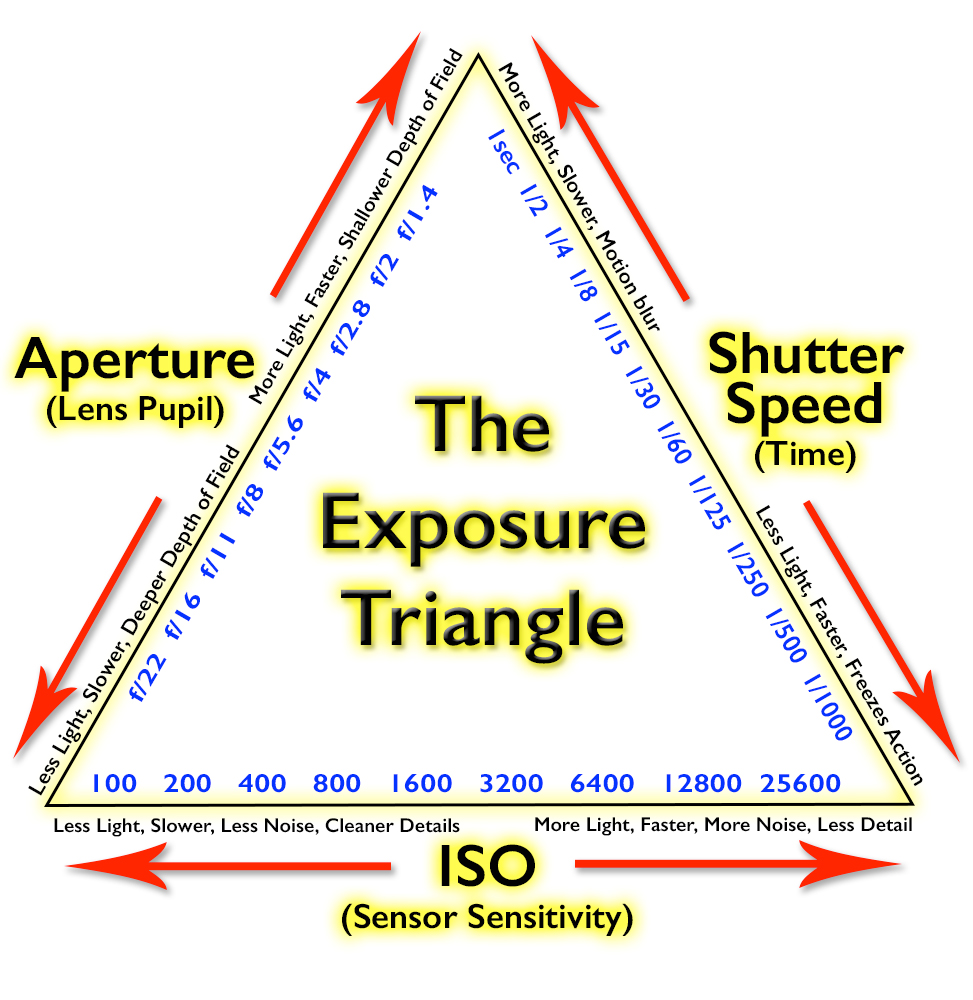
[Basic Photography] Exposure

The first way on learning Photography is to learn the light of the scene you want to shoot. The way to capture the light is called "Exposure". Exposure, in terms of photography, means the amount of light per unit area reaching the photographic film, as determined by shutter speed, lens aperture, and scene luminance. In digital photography "film" is substituted with "sensor". Exposure is measured in lux seconds, and can be computed from exposure value (EV) and scene luminance in a specified region.
SHUTTER SPEED is the time of the shot progresses. The less the shutter speed is, the more the focus and less shake of the picture can be, and the less the light is. 1 sec, 1/2, 1/4, 1/125, and 1/250 are values for measuring shutter speed. the APERTURE is the means of the size of the lens. The more the larger the aperture is, the more the subject will be seen widely. f/4, f/5.6, and f/8 are values for aperture. ISO is the sensitivity of the sensor to the light. The more the ISO is, the more the brighter the captured image is. 400, 800, and 3200 are values for measuring ISO.

Friday, March 21, 2014

#12 - Final Project

All I can say is this is my final blog for this subject. What will I tell here is my three designs for the final project. However, one will be chosen and to be printed soon. So here:

Final Design #1
Vectoring, Rule of Thirds (maybe), Typography, Blending Modes

Final Design #2
Vectoring, Rule of Thirds (maybe), Typography, Blending Modes, Layer Mask

Final Design #3
Vectoring, Rule of Thirds (maybe), Typography, Blending Modes, Kuler

Tuesday, February 25, 2014

#11 - How to Save Photoshop PDF in Photoshop

#11 - How to Save Photoshop PDF in Photoshop

Such security. 11th day in Principles of Design and Color Theory. What I've learned today is about saving Photoshop PDF Files in Photoshop. Well, first of all, what is PDF? PDF stands for Portable Document Format. PDF is a file format used to represent documents in a manner independent of application software, hardware, and operating system. From my point of view, PDFs are document files but not able to be edited. PDFs are mostly save files from word, excel, and powerpoint to avoid editing the document. So then, Photoshop has the ability to save into Photoshop PDF file for printing purposes.

What am I writing is how to save one Photoshop PDF file. When the first time I've learned and did about this, it is a lot easy as long as you have high comprehension of learning a lot of things beyond you.


#1


Let's start with the Photoshop file I'm going to save in Photoshop PDF. Why am I starting this in this way? It is because everything starts from the most simple and most beginning of a process and, of course, it has to end in the most simple and most end of a process...


#2


To save this as a Photoshop PDF file: Go to File, then Save As...


#3


In the Format, click and check Photoshop PDF so you'll save the file in Photoshop PDF file. Then, hit Save...


#4


Hmm... after you hit Save, you'll get to encounter and open this dialog box. It says: "The setting you choose in the Save Adobe PDF dialog can override your current settings in the Save As dialog box." It seems that when we save it with the settings in the Photoshop such as color working space assigned, it can override the current settings from the process during the Save As. So, this is just a warning. So then, hit OK. You may check the Don't show again. If you do, after hitting Save from the process in Save As, this dialog will never appear again. It is useful if this dialog annoys you...


#5


Then, you'll get in this part. This part tells you the other settings for saving into Photoshop PDF file. Adobe PDF Preset tells you how much quality will you save the file. It is better in high quality but costs a lot of time and space. Compatibility does the saved PDF will open in a program called Acrobat which opens PDF files. In it, it shows options which Acrobat version---4, 5, 6, 7, and so on--- will support the PDF file. Example, if you select version 5, it will open in 5 or higher versions but it will not open in 4. Options will help you on how previewing the PDF file. All of these stuff are in General section...


#6


In Compression section, this compresses the file into an assigned compression, resolution, quality. With the settings above, you get to save a PDF file into JPEG compression, in maximum quality, and with a 300 pixels per inch resolution...


#7


In the Security section, you'll get to set a password for the PDF file to be opened and to be printed. If you want to require one, just do it. If you don't want to, just do it. This helps you to have security in your PDF file. In the Permissions tab, this sets you if there are printing and changes permissions if they are allowed or not. If you want to print it but still with a password, first make a password then make permissions for printing and make sure the Printing Allowed is NOT "none"...


#7

The rest: Summary section just summarize the PDF file you want to save from the setting you've used in the first four sections.If you're sure with the settings, hit Save PDF...


#8


Last one... if you get to encounter this dialog, this tells you that this editing capabilities is incompatible with earlier versions of Photoshop. In earlier versions, you must open the PDF as a Generic PDF (not as a Photoshop PDF)... just continue (hit Yes) and never tried no...

#8.5


If you set passwords, you'll get to confirm the passwords before saving.


Want to try this opening this? Just download the link below:

Passwords:
Document: rx0987
Permissions: print0123

Printing is enabled but changes are unabled.

Sources:

Tuesday, February 11, 2014

#10 - Vanishing Point

The 10th Day in Principles of Design and Color Theory

What I've learned today is about Vanishing Point in editing images in Adobe Photoshop. It is all about perspectives during editing. You can insert a lot of images and the place will depend on the object's perspective. Example: You have a picture you want to edit with the walls appear at the left, right, and front of you, and this includes the ceilings and the floor. Then, you'll have to use Vanishing Point to get the perspectives of the walls, the ceiling, and the floor. Then, inserting images during the vanishing point is possible. So, that makes every images inserted is according to the perspective of the walls, floors, and ceilings. It is a lot impressive to me. And, here's my work for Vanishing Point:


"The Vanishing Exhibit"

"Vanishing" It is because that I used Vanishing Point filter tool in Photoshop. "Exhibit" It is because it is an art exhibit anyway. The things I did in this edit: Mainly, I replaced the original artworks in the original photo with my artworks, and also my friend's artworks. I used Vanishing Point to find the perspectives of the front wall, the left wall, and the right wall. Then I replaced and replaced. I just left the reflections in the floor. This edit can be done in Move Tool. But, I used Vanishing Point to find and edit this with perspectives.